


A step-by-step tutorial for generating test cases from a synced Jira or Azure DevOps requirement with Katalon AI in Katalon True, reviewing and saving the drafts, generating from inside Jira, and what happens after you save.
AI test case generation in Katalon True works like this: Katalon AI reads a requirement synced from Jira or Azure DevOps and drafts manual test cases for it, with steps and expected results. Nothing is saved until your team reviews the drafts: you edit what's wrong, discard what you don't need, and save the rest. Saved cases stay linked to the requirement.
What you get is a faster first draft and a list of questions about gaps in the requirement. What you still do yourself is write a requirement worth testing, answer those questions, and decide which drafts are right. Katalon's own docs say AI-generated results may contain errors and must always be reviewed.
What you need before you start
- AI features turned on. Katalon enables AI features by default. An admin can turn them off for the whole account (Katalon True and Katalon Studio) in AI Services. On accounts with the newer AI Services page, individual features can be toggled; Test Design includes Test case generation, Requirement quality score, and Clarifying questions. If you can't see Generate Test Cases, check here first.
- A synced Jira or Azure DevOps project. Katalon AI generates from requirements your ALM syncs into Katalon True, so set up the Jira integration or the Azure DevOps integration and sync the requirement you want to use.
- Requirements with acceptance criteria. For Jira, Katalon AI also reads mapped custom fields such as Acceptance Criteria. If the field is empty, it works from the description, so fill in the criteria for the most accurate drafts.
Katalon AI Assistant is a chat panel inside Katalon True that stays aware of the page you're on. The docs also name 6 AI agents across the platform; this table shows where each one's work appears in this tutorial.
Agent | What it does | Where it relates to this tutorial |
|---|---|---|
Requirement Analyzer | Checks requirement completeness and ambiguity, and supports test planning | Preparing the requirement, covered below |
Test Generation Agent | Generates test cases to cover requirements and prioritized flows | The drafts in step 4 |
AI Test Runner | Runs natural-language or manual workflows and captures evidence | Run with AI, after you save |
Root Cause Analyzer | Failure analysis | Failed automated results (not manual tests) |
Bug Reporter | Bug reports | Filing a Jira or Azure DevOps bug from a failed result |
Report and Insight Generator | Reports and insights | Outside this tutorial |
How to generate test cases with Katalon AI in Katalon True
The flow below follows the Generate Test Cases with AI docs page.
Step 1: Open the requirement
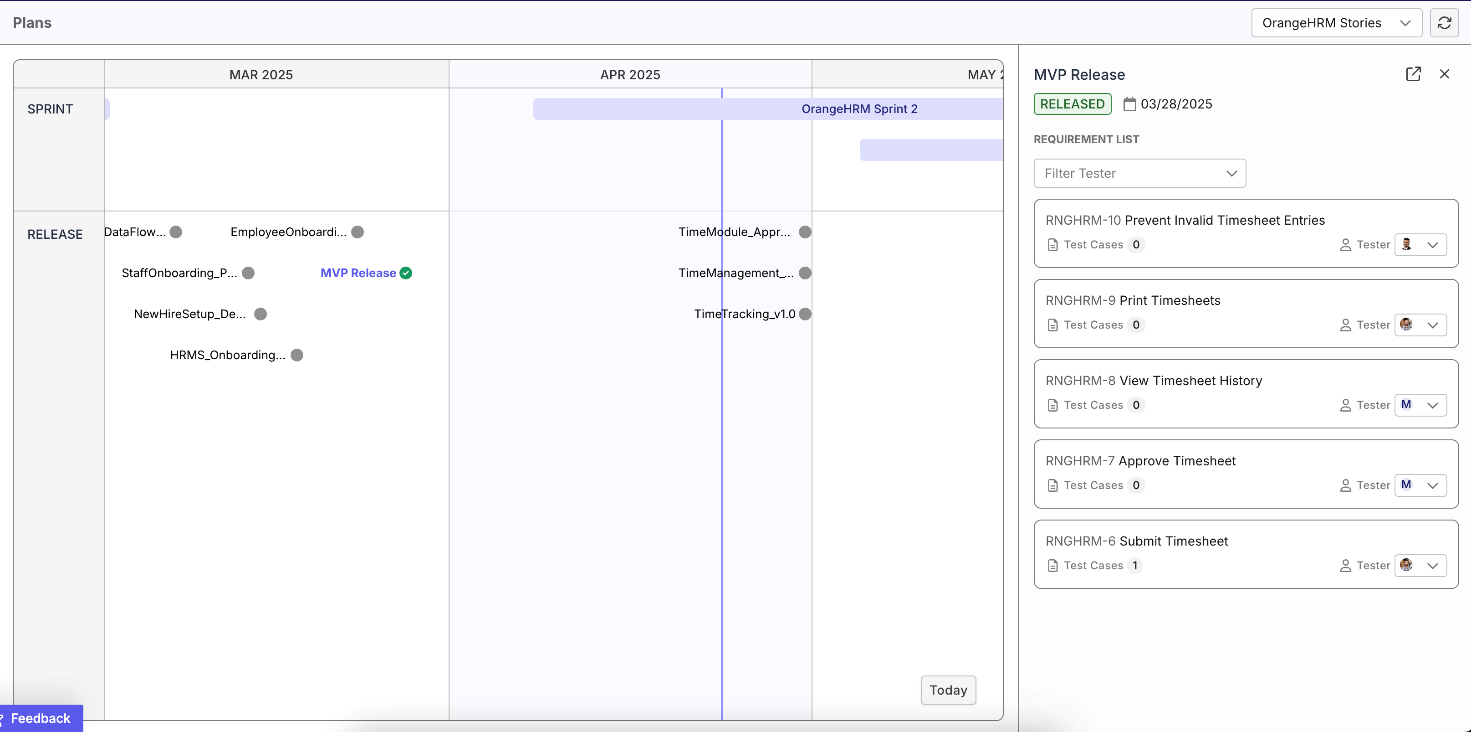
In Plans, your releases and sprints are imported from Jira or Azure DevOps. Open the release or sprint that contains the requirement, then select the requirement to open its details.
Step 2: Select Generate Test Cases and set the input
Select Generate Test Cases in the requirement header.
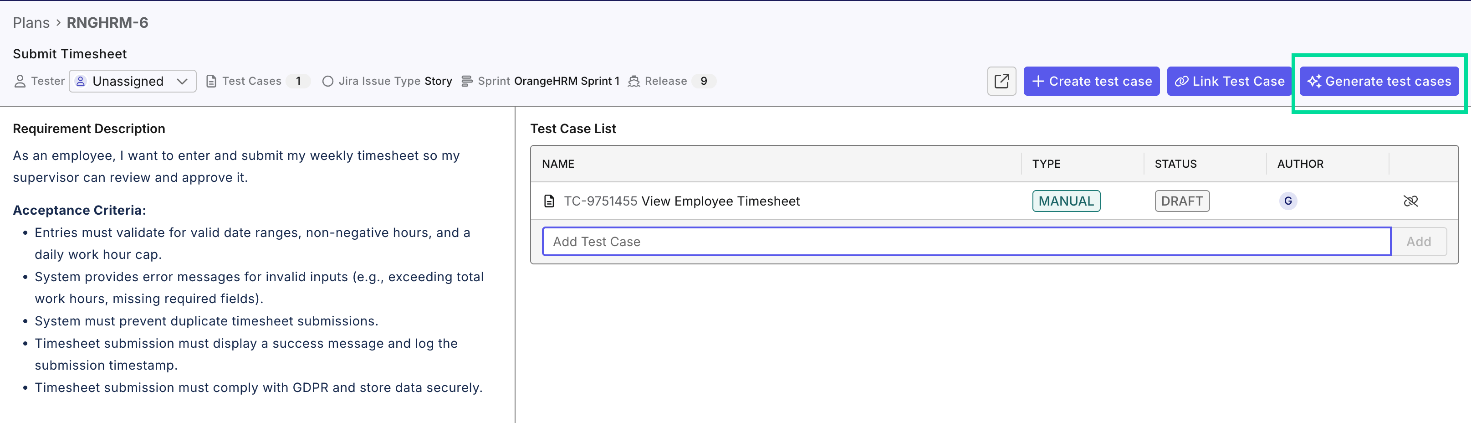
In Generation Input, you can:
- Add context about what you want to test, such as the app URL, test data, or the paths that matter most.
- Upload supporting files: .pdf, .doc, and .docx documents, .txt and .md text, .xls, .xlsx, and .csv spreadsheets, and .png, .jpg, .jpeg, and .gif images.
- Choose or confirm the target folder for the saved cases.
Both the context and the uploads are optional. Then select Generate.
Step 3: Answer the clarification questions
Katalon AI may ask clarification questions after you select Generate. Answer them rather than skipping them: they often point at real gaps, such as a missing limit or an undefined error message.
Step 4: Review the drafts in AI Drafts for Review
The generated cases appear as cards under AI Drafts for Review. Open a draft to see its details and steps. For each one, you can:
- Edit the test case details and individual steps.
- Select Regenerate Steps to have Katalon AI write the steps again, then review the new ones.
- Select Discard to remove a draft you don't want. A "Why discard?" menu asks you to pick a reason.
If generation uses your project's AI knowledge base of uploaded PRDs and specs, the reply also ends with a Potential conflicts section: Conflict found, None found (with the sources it checked), or Could not check. It only informs you; it doesn't change the requirement, the documents, or the drafts.
Treat every card as a first draft. The next sections cover what to look for.
Step 5: Save the cases you want
Confirm the save location, then select Save for one case or Save All for the remaining drafts. Saved cases are linked to the requirement and appear under Linked Test Cases, so coverage stays traceable to the Jira or Azure DevOps item.
Generate test cases from inside Jira with the Katalon app for Jira
If your team works in Jira Cloud, the Katalon app for Jira is the current way to generate test cases without leaving the issue.
You need the Jira integration set up in Katalon True and the app installed on your Jira Cloud site. A Jira admin then connects each Jira project to one Katalon project with a Katalon API key. After that:
- Open a Jira issue in the connected project.
- On the issue, select Generate Test Cases with Katalon AI to draft scenarios.
- Choose a folder to save accepted test cases to.
- Review each generated scenario and select Accept to save it and link it to the issue, or Reject to remove it.
End session discards anything you haven't accepted or rejected. The issue must already be synced to Katalon as a requirement, and syncing isn't instant: if you start too early, the app shows "This issue isn't synced yet". The Katalon Test Results panel on the issue then lists the linked test cases, run results, and Katalon Studio results.
There's a third route: in Katalon AI Assistant you can connect your own apps, such as Jira, Azure DevOps, Confluence, or Figma, and generate test cases from an issue, a requirement page, or Figma screens. You review those drafts before they're saved too.
Prepare the requirement for the Requirement Analyzer
The Requirement Analyzer checks a requirement for completeness and ambiguity. The Generate Test Cases docs offer this advice:
- Put the app URL in the requirement. Katalon AI needs to know where the feature lives.
- State the test data, in the requirement or in the context you add.
- Generate from a test or feature requirement, the requirement types the docs recommend.
- Map and fill Acceptance Criteria. Katalon AI reads mapped Jira fields such as Acceptance Criteria and Steps to Reproduce, read-only. After you change the mapping, re-sync requirements in Plans.
Here's the difference in practice (an illustrative requirement, not Katalon output):
Weak requirement | Testable requirement | |
|---|---|---|
Story | Users can apply discount codes | As a shopper, I want to apply a discount code at checkout so that I pay the reduced price |
Acceptance criteria | None | A valid code reduces the order total; an expired code shows an error and the total doesn't change; one code per order |
What to expect | Vaguer drafts and more clarification questions | Drafts you can check against each criterion, including the negative paths |
For more on writing requirements that hold up, see how to write testable requirements for AI generation.
Check each draft before you select Save
Check each draft against the requirement, not against whether it reads well:
- Traceable: each case covers an acceptance criterion or a known risk.
- Negative and boundary paths: invalid input, limits, and failures are covered, not only the happy path.
- Checkable expected results: "a $50.00 order with a 10% code shows a total of $45.00", not "the discount works".
- Nothing invented: no fields, screens, or rules the requirement doesn't contain.
For the full review method, including duplicates, preconditions, and unwritten business rules, read how to review AI-generated test cases. If you're new to the anatomy of a case (steps, data, expected results), start with how to write test cases.
What happens after you save
Saved cases are manual test cases, and Katalon TestOps, the test management side of Katalon True, takes them from there.
- Manual runs: create a manual test run with a target configuration, then run it yourself or select Run with AI.
- Run with AI: Katalon AI runs the steps and pauses when it needs your input. You follow it in the AI Sessions tab, and results include per-step status, video, screenshots, and an AI log. Select End test run when you're done. It runs in Chrome or Edge on desktop: Linux, Windows, or macOS with licensed TestCloud, or Chrome on Linux or Windows without a license.
- Failures and bugs: for automated tests, Analyze or the assistant classifies a failure as a bug, a script issue, or a flaky test. That analysis isn't available for manual tests. From a failed result, the assistant can draft and file a Jira or Azure DevOps bug, one ticket per result.
- Automation: stable cases that run every release are candidates for automation in Katalon Studio. Automated runs in TestOps can start now or on a schedule, on Katalon cloud or self-hosted agents. For where AI fits there, see AI-powered test automation and AI in regression testing.

Limits to know
- Drafts can be wrong. The docs say AI-generated results may contain errors and must always be reviewed.
- It works from what's written and mapped. Katalon AI reads the requirement, your context and uploads, and mapped Jira fields. It doesn't know business rules nobody wrote down.
- A synced requirement comes first. Generation in Katalon True and in the Katalon app for Jira needs a requirement synced from Jira or Azure DevOps, and syncing isn't instant.
- The Katalon app for Jira is for Jira Cloud.
- Potential conflicts only informs. It won't fix a requirement or a spec; you do that at the source and regenerate.
- Run with AI is desktop web only: Chrome or Edge, no mobile.
- Failure triage is for automated tests, and some bug ticket fields, such as videos and priority, aren't supported when the assistant files a bug.
For a wider view of where AI helps and where it doesn't, see AI in quality assurance.
Frequently asked questions
From a Jira or Azure DevOps project synced to Katalon True. You open the requirement from its release or sprint and generate from there. With the Katalon app for Jira (Jira Cloud), you can also generate from the issue itself, as long as it's already synced as a requirement.
Yes. For each draft under AI Drafts for Review, you can edit the details and steps, select Regenerate Steps, or Discard it. Then save one case at a time or use Save All.
Saved cases are linked to the requirement and appear under its Linked Test Cases. With the Katalon app for Jira, cases you accept are linked to the issue automatically, and the Katalon Test Results panel on the issue lists them with their run results.
Yes. In Generation Input you can upload documents (including .pdf and .docx), text files, spreadsheets, and images as optional context; Step 2 lists every supported type.
No. It runs the steps of saved manual test cases from a manual test run in Chrome or Edge on desktop, and pauses for your input when it can't complete a step.
Yes, through Katalon AI Assistant. Connect your own Jira, Azure DevOps, Confluence, or Figma account, and the assistant can generate test cases from an issue, a requirement page, or Figma screens. You review those drafts before they're saved.
Yes, if the user story is a requirement synced from Jira or Azure DevOps. Katalon AI reads the story, its description, and mapped fields such as Acceptance Criteria, may ask clarification questions, and drafts manual test cases that your team reviews, edits, and saves.
An admin, in AI Services. AI features are on by default, and the switch applies to the whole account, in Katalon True and Katalon Studio. Accounts with the newer AI Services page can also toggle individual features such as Test case generation.



Test everything. Ship with confidence.
From generating test cases to spotting failures, Katalon's AI works across your entire pipeline, automatically.
